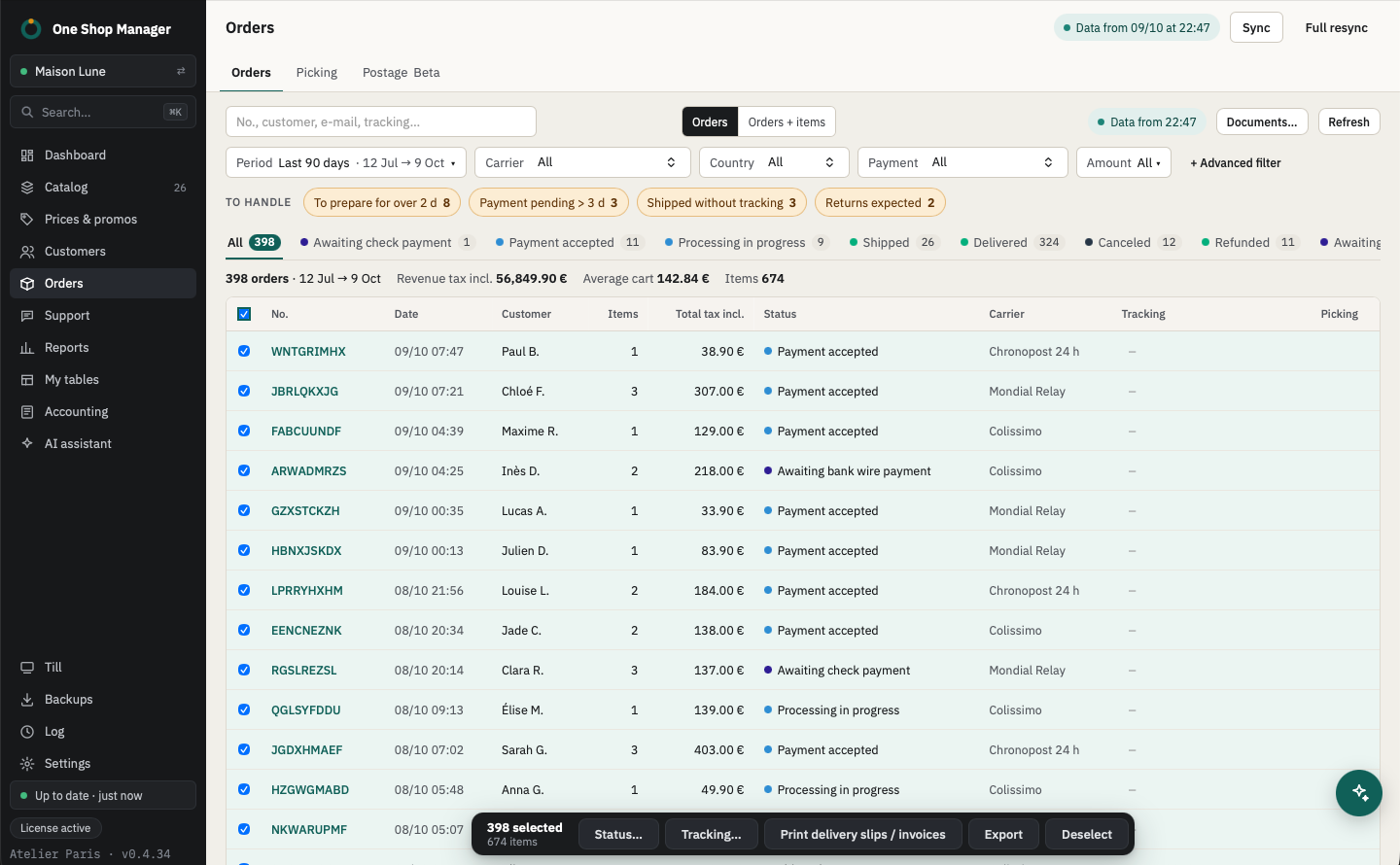
To handle today
The dashboard lists the orders that need action; one click opens the list:
- waiting to be picked for more than 2 days;
- payment pending for more than 3 days;
- shipped without a tracking number;
- returns expected;
- best sellers out of stock.
The rest of the dashboard is described in the Analytics module.
Order list
- Orders from the last 90 days (or 12 months, or the full history) and all unfinished orders, whatever their age, read locally.
- Filters by status, carrier and "To handle", search by number, customer, email or tracking number.
- Order page and customer page without leaving the list: addresses, tracking, label, margin, VAT per line, return or refund with a PrestaShop credit slip.
- "Reply in Support" from an order: the customer's thread opens in the Customer service module.
- "Orders + items" view to see the contents of each order.
Bulk actions on orders
| Action | Detail |
|---|---|
| Status | Grouped change, with a preview before sending |
| Tracking | Numbers pasted in bulk in the form "Order number ⇥ Tracking number" |
| Documents | Delivery slips, invoices and credit slips in batches, as one PDF or one file per document |
| Export | Selected orders as CSV |
Picking: prepare orders with a barcode scanner
- Choosing the orders: by status to pick, oldest first, excluding if needed those with an item missing from stock.
- Reservation: the chosen orders are locked in the computer's name; another picker cannot take them. Locks are released on leaving, or on their own after 2 hours without activity.
- Picking: consolidated list of all the items, sorted by location (aisle-shelf-level), scan of the EAN or the reference, or +1 by hand.
- Packing check: each item is scanned again into the parcel of its order; without a barcode scanner, a +1 per line or "Everything is in the parcel".
- Shipping: tracking number, delivery slip and invoice, then "Mark as shipped".
The customer's messages about the order are shown while picking: a request ("no paper invoice", "gift wrapping") no longer goes unnoticed.
The order list and the order lines are read from local data (instant opening); only the locks of the other computers are re-read live, and the reservation always goes through the shop.
In store too
You sell over the counter from the same stock: every sale on the till creates a PrestaShop order, which joins this list next to the website's orders.
Frequently asked questions
Do you need a barcode scanner to use picking?
No. Everything can also be done with the keyboard or the mouse: +1 per item when picking and when checking the parcel. A USB or Bluetooth barcode scanner that types the EAN then Enter works without any setup.
Can two pickers work at the same time?
Yes. Each reserved order is locked in the name of the computer picking it, and the other computers see it as "Being picked".
Can you print 40 delivery slips in one go?
Yes: select the orders, then "Print delivery slips / invoices". The documents come out as a single PDF or as one file per document.