Launch a campaign on your selection
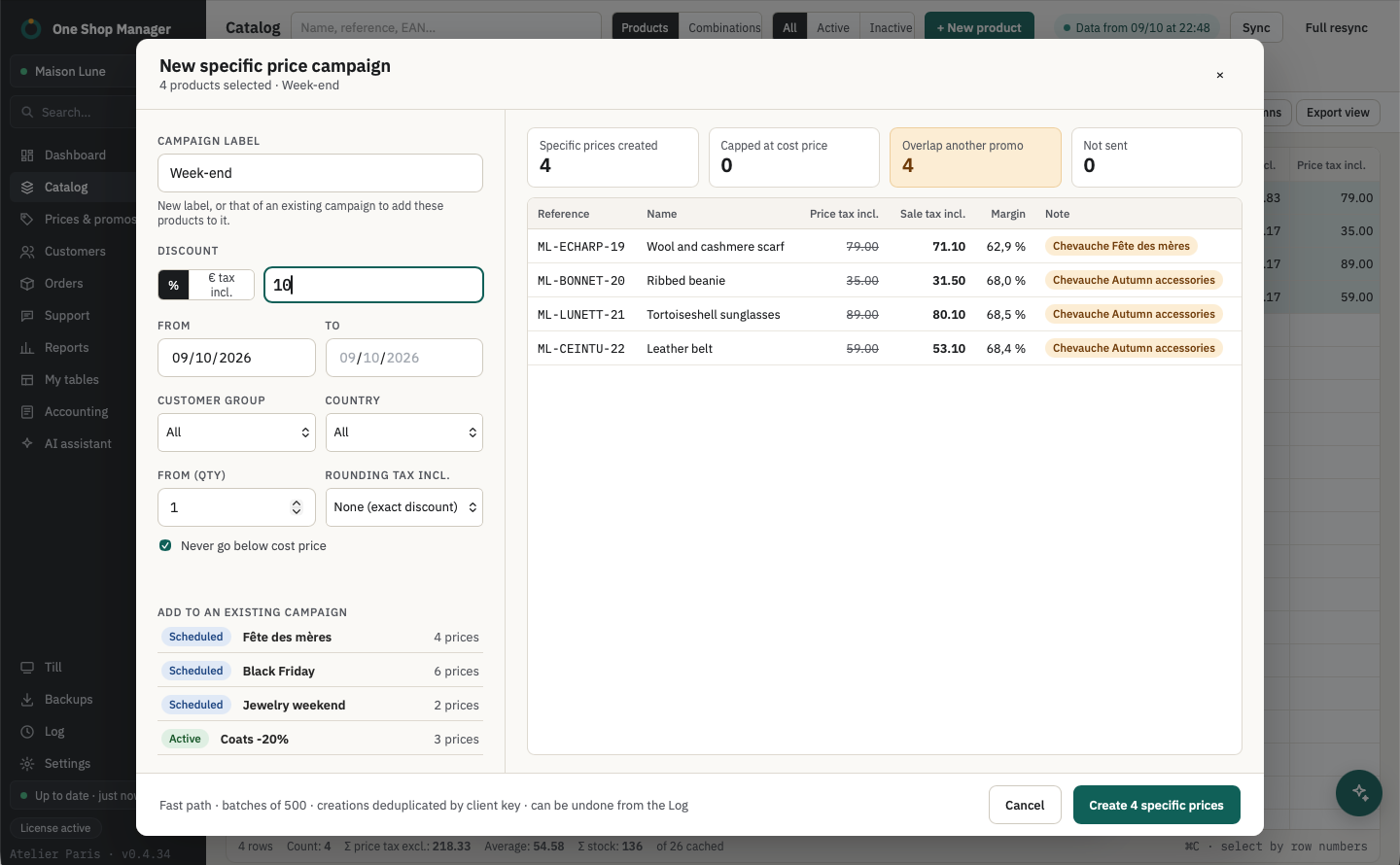
From the catalog: right-click › Bulk edit › Specific price campaign.
| Setting | Options |
|---|---|
| Discount | In % or as an amount including tax |
| Period | Start and end date (start at 00:00, end at 23:59); with no date, the promotion has no limit |
| Scope | All customers or one group, all countries or one country, from a minimum quantity |
| Price rounding | Exact discount, to the cent, to x.90 or to x.99 |
| Safeguard | "Never go below cost price", checked by default |
The preview shows, product by product, the struck-through price, the sale price and the margin during the promotion, with four counters: specific prices created, capped at cost price, overlapping another promotion, not sent. Above 1,000 prices, you type their number to confirm.
Spot overlapping promotions
Before sending, every product on which another promotion is already running during the period is flagged: "Another promotion is already running on this product during this period." You remove the product or keep both, knowingly.
Manage your running campaigns
- List of campaigns with their status, their number of prices and a campaign calendar.
- Add products to a running campaign: they take its dates and scope.
- Change the dates to extend it: each price takes the new period; a price changed in PrestaShop in the meantime is flagged and left as is.
- Duplicate: same products, same discounts, under a new label and over a new period.
- Delete the campaign: its specific prices are removed from the shop, the others are not touched. Can be undone from the log.
Clean up your promo codes
- List of promo codes (cart rules) with search by code or name, validity, discount and remaining uses.
- For each code: the orders that used it and the carts where it was entered, abandoned ones included. You copy the emails or export the list as CSV.
- Delete expired unused codes: validity over and no order. Each code is checked again before deletion; the operation cannot be undone, so export the list first to keep a record.
With the assistant
You ask, it prepares, you approve:
- "Which in-stock products haven't sold in 90 days?": it prepares the list, you launch the campaign from Reports › Slow movers.
- "What margin do I have left on the products in the Sweaters category?": it reads prices and cost prices and shows you the table.
- "Lower the price by 5% on products under 20% margin": it files a price proposal, which you open in the preview before applying it.
See the AI assistant.
Frequently asked questions
Can a promotion sell a product at a loss?
Not if you leave "Never go below cost price" checked: the sale price is then capped at the cost price, and the preview counts the products concerned.
How do you stop a promotion before its end date?
Delete the campaign: all its specific prices are removed from the shop in one operation, without touching the other promotions. You can also shorten it by changing its dates.
Can you target a customer group or a country?
Yes. Each campaign targets all customers or one group, all countries or one country, and can start from a minimum quantity bought. To build the group, see customer levels.
What happens to deleted promo codes?
They are erased from the shop; only expired codes never used in an order are concerned. Export the list as CSV first if you want to keep a record.
Learn more
- Previous module: the catalog in bulk, where campaigns start.
- Next module: your customers, their levels and groups.
- Slow movers in the reports.